
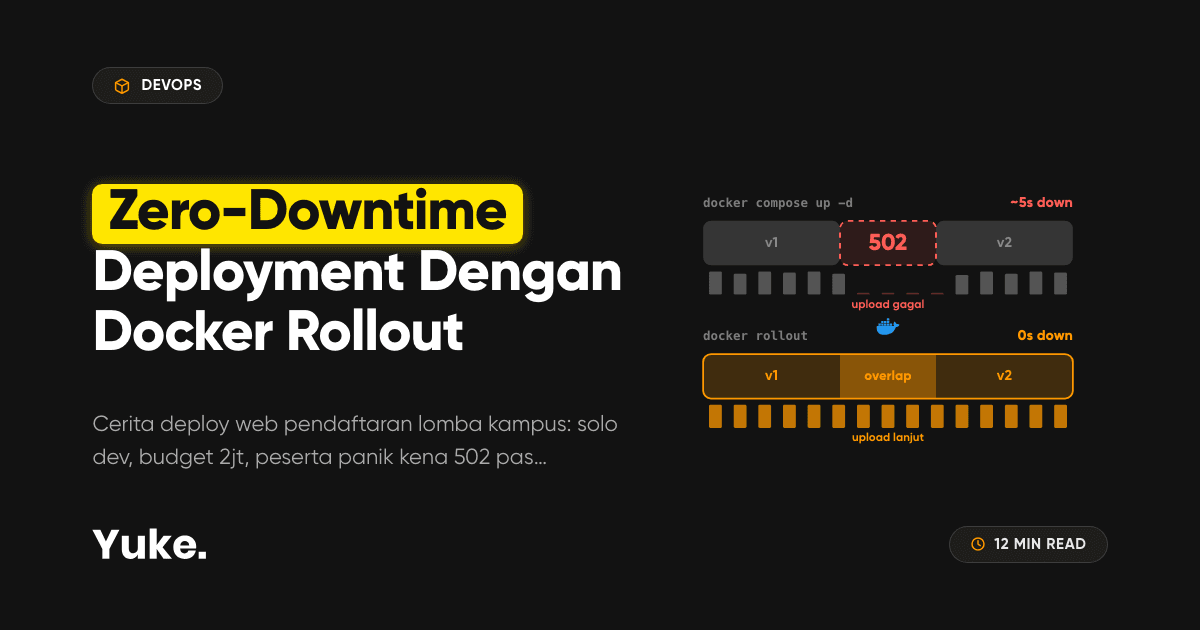
A while ago, I was tasked with building a registration and competition submission portal for an annual campus event at my university, ITS (Institut Teknologi Sepuluh Nopember). Back then, I was flying solo with a very limited student budget 😭 So the architecture was designed to be as lean and stripped-down as possible: a single Linux VPS (2 vCPUs, 4 GB RAM), a lone docker-compose.yml file, and the application cleanly containerized inside Docker.
The deployment workflow we used was the classic routine:
- Push code to Git
- Run
git pull - Build the new image with
docker compose build - Then
docker compose up -d
Simple, fast, and throughout prep week, everything felt completely solid, until registration entered its final stretch...
Anyone who has ever managed an event or competition portal knows how participants behave: 90% of them wait until the very last hour before the deadline to register lmao 😅 And competition registration forms are notoriously input-heavy. We are not just talking about a name and email. There were over a dozen fields: team name, team leader details, member info, institution name, plus a barrage of document uploads: student ID scans (KTM), proof of following sponsor accounts, proof of sharing event posters to Instagram stories, all the way to payment transfer receipts.
Right when traffic was peaking and contestants were busy uploading their files, the committee reported a tiny validation bug that needed an immediate fix. Without thinking twice, I pushed the hotfix to the server and ran docker compose up -d. At that exact millisecond: BOOM! Contestants were immediately greeted by a glaring 502 Bad Gateway screen 💀 Large file uploads that were 80% through failed instantly, the form reset back to zero, participants panicked and stormed the committee helpdesk, and naturally, the developer ended up in the crosshairs lmao.

Honestly, I already knew the textbook solutions: if not Docker Swarm, then set up Kubernetes. Both offer built-in rolling updates that transition containers without blinking. But this was a small campus project and I was working as a solo dev. It was completely not worth it to set up Kubernetes, which demands hefty resources, multiple VMs, not to mention wrestling with endless YAML files 😅

That is where the central question came up: "Do we really need Kubernetes just to eliminate a 5-second downtime window?"
After looking for a pragmatic middle ground that would spare both server resources and peace of mind, I finally found the answer: docker-rollout. With just a single lightweight Docker CLI plugin, we get true zero-downtime deployments on Docker Compose without ever touching Docker Swarm or Kubernetes, complete with connection draining so active in-flight uploads never get dropped mid-flight! 🔥
Why does docker compose up -d cause downtime?
Many developers assume that passing the -d (detached mode) flag in Docker Compose automatically handles container replacement seamlessly in the background. That assumption is dead wrong lmao! Running docker compose up -d on an already active service triggers a recreate mechanism, not a rolling replace.
Here is the sequence of events that actually happens behind the scenes:

The downtime experienced by users is the cumulative time it takes to kill the old container plus the boot time of the new application runtime. In lightweight runtimes like Go, it might be quick - just 1 to 2 seconds. But in frameworks like Next.js, Node.js (Express/Nest), or Laravel, runtime initialization, database connection pool setup, and route parsing can easily take 5 to 20 seconds! During that entire window, the application port is closed, and any reverse proxy in front will immediately throw a 502 Bad Gateway or Connection Refused error back to user browsers.
This gap claims two distinct types of victims:
- Incoming requests: New visitors opening a page or submitting a form while the container is down get an instant 502 error.
- In-flight requests: Users whose requests are actively processing (for instance, uploading a 15MB student ID scan or payment receipt) get forcibly severed because the old container process is killed before it can finish writing data 😭
Different approaches to zero-downtime deployment
Before choosing docker-rollout, let us examine the common approaches engineers typically use to tackle this problem on a single server:
Manual blue-green
This pattern sets up two identical service definitions in docker-compose.yml, such as web_blue on port 3001 and web_green on port 3002. While the blue version is active, you spin up green. Once green is ready, you switch the upstream block in your Nginx configuration, run nginx -s reload, and only then stop blue. This method works well, but requires tedious scripting, is prone to human error during emergencies, and bloats your compose file with duplicate service definitions.
Orchestrators (Swarm / Kubernetes)
This is the real industry standard. Both Docker Swarm and Kubernetes have native rolling update abstractions: new containers spin up, health is verified, and old containers are phased out gradually. However, spinning up Swarm or Kubernetes on a single budget VPS is like hiring a 40-foot freight truck just to deliver a lunchbox lmao. The memory overhead alone can eat 1 to 3 GB of RAM, and the operational complexity is simply disproportionate for small-to-medium scale projects.
Deployment platforms (Kamal, Dokku, etc.)
Platforms like Kamal (by 37signals) or Dokku support zero-downtime out of the box. The downside is that these tools are fairly opinionated and require you to play by their rules: custom configuration schemas, mandatory remote Docker registries, and dedicated deployment hooks. If your goal is simply a lean deploy script you can run directly on the server with your existing compose file, adopting a whole new platform can feel like unnecessary baggage.
docker-rollout
This approach takes the most pragmatic middle ground. Just one drop-in replacement command, no extra background daemons, no radical changes to your compose.yml, and it works directly on top of the Docker engine you already have installed.
| Method | Setup | Requires Proxy | Best For |
|---|---|---|---|
compose up -d |
None | No | Local dev / hobby |
| Manual blue-green | Medium | Yes | Single VPS + custom scripts |
| Swarm / K8s | Heavy | Built-in | Multi-node, enterprise scale |
| Kamal / Dokku | Medium | Built-in | New projects with dedicated CI/CD |
| docker-rollout | Minimal | Yes | Single VPS / homelab, budget-friendly |
Meet docker-rollout
docker-rollout is an open-source Docker CLI plugin developed by Piotr Gaczkowski (wowu). It is written purely as a standalone Shell script, licensed under MIT, has around 3,000 stars on GitHub, and is actively maintained (at version 0.14 at the time of writing). It works seamlessly with both modern docker compose (plugin v2) and legacy docker-compose.
The core concept is remarkably simple yet clever. Instead of stopping the old container and creating a new one, docker-rollout leverages Docker Compose's built-in scaling features to scale instances dynamically in 3 steps:
- Scale to 2x: Doubles the target service instances (for example, from 1 to 2). The new container boots in parallel, while the old container continues serving users.
- Wait for Healthy: Waits until the new container reaches a healthy status (if a healthcheck is defined) or waits for a specified timer until the application is confirmed ready to receive traffic.
- Remove the Old: Stops and removes the old version container gradually, leaving the new version container in complete control of the workload.

Note: Because this scaling mechanism uses Docker Compose's default container naming scheme, the number in the container name increments with each deploy (for instance, from web-1 to web-2, then web-3, and so on). That is normal behaviour and is how Docker Compose distinguishes between separate instances.
Prerequisites
Before implementing docker-rollout, make sure your server environment meets the following architectural prerequisites:
- A VPS / machine with Docker and the Docker Compose plugin: Using modern Docker Compose (the
docker composecommand, rather than legacydocker-compose) is recommended, though both are supported. - A dynamic reverse proxy: Because two containers coexist during the transition, you must use a reverse proxy that automatically discovers Docker containers via labels or a Docker network, such as Traefik, Nginx Proxy (nginx-proxy), or Caddy Docker Proxy. In this article, we use Traefik as the primary example, but the concepts apply universally.
- Target services must NOT specify container_name: Docker strictly forbids two containers from sharing an identical name. Remove the
container_name:line from your service definition so Docker Compose can manage automatic instance naming (web-1, web-2). - Target services must NOT publish host ports directly: Remove host port mappings like
ports: ["3000:3000"]from your web service. If two containers attempt to bind the same host port simultaneously, the second container will immediately fail with an "address already in use" error. All external traffic must be routed through the reverse proxy. - A lightweight healthcheck endpoint: The application should provide a healthcheck endpoint (such as
GET /healthorGET /api/health) that is fast and resource-friendly. - (Optional) Graceful shutdown handling: The application should handle the
SIGTERMsignal to finish processing active requests before the process exits.
Warning: The following sections are technical. It is assumed you are comfortable navigating the Linux terminal, Docker Compose, and basic reverse proxy concepts.
Installing docker-rollout
Installing docker-rollout is very straightforward because it is a standalone script placed directly into Docker's CLI plugin directory:
# Create the docker plugin directory if it does not exist
mkdir -p ~/.docker/cli-plugins

# Download the docker-rollout script directly from the official repo
curl https://raw.githubusercontent.com/wowu/docker-rollout/main/docker-rollout \
  -o ~/.docker/cli-plugins/docker-rollout

# Make it executable
chmod +x ~/.docker/cli-plugins/docker-rollout
If you regularly run Docker with sudo, or want the plugin available to all users across the server, install the script to the global path: /usr/local/lib/docker/cli-plugins/docker-rollout.
Verify that it is installed:
docker rollout --help
If the installation succeeded, your terminal will display the help options for the docker rollout command. If you see the message docker: 'rollout' is not a docker command, do not proceed yet! Re-check that your directory path is correct and that execution permissions (chmod +x) were granted.
Setup
The setup process consists of four main parts. Make sure you complete the checkpoint at each step before moving on to the next:
1. Set up the reverse proxy
Set up a reverse proxy (we will use Traefik here) connected to a shared external Docker network named proxy. Here is a clean example of a compose.yml file for Traefik:
services:
  traefik:
    image: traefik:v3.0
    restart: always
    command:
      - "--providers.docker=true"
      - "--providers.docker.exposedbydefault=false"
      - "--entryPoints.web.address=:80"
    ports:
      - "80:80"
    volumes:
      - /var/run/docker.sock:/var/run/docker.sock:ro
    networks:
      - proxy

networks:
  proxy:
    name: proxy
Check: Start Traefik with docker compose up -d. Verify that the Traefik container is running and that the proxy network appears when you run docker network ls.
2. Configure your service compose.yml
Now open your application's docker-compose.yml file. Remove the container_name line and the ports mapping, then attach Traefik routing labels and connect the service to the proxy network.
Before (old configuration, prone to 502s):
services:
  web:
    build: .
    container_name: web-app       # MUST BE REMOVED!
    ports:
      - "3000:3000"               # MUST BE REMOVED!
After (rollout-ready):
services:
  web:
    build: .
    restart: always
    networks:
      - proxy
    labels:
      - "traefik.enable=true"
      - "traefik.http.routers.web.rule=Host(`lomba.kampus.ac.id`)"
      - "traefik.http.routers.web.entrypoints=web"
      - "traefik.http.services.web.loadbalancer.server.port=3000"
    healthcheck:
      test: curl -f http://localhost:3000/health || exit 1
      interval: 5s
      timeout: 3s
      retries: 3
      start_period: 10s

networks:
  proxy:
    external: true
Check: Start the application once with docker compose up -d web. Access your domain via a browser or curl; verify that it responds with an HTTP 200 status code.
3. Add a healthcheck
Healthchecks are the single most crucial piece in the zero-downtime mechanism. Without a healthcheck, docker-rollout has no way to know whether the new application has finished initializing database connections or is still in cold boot. As a result, rollout will simply fall back to a passive default 10-second sleep, which may not be enough for heavy applications.
healthcheck:
  test: curl -f http://localhost:3000/health || exit 1
  interval: 5s
  timeout: 3s
  retries: 3
  start_period: 10s
If your application image is minimal without curl (such as bare Alpine or Distroless), use wget -qO- http://localhost:3000/health || exit 1 or include a small healthcheck binary.
Check: Run docker ps in your terminal. The STATUS column for your container should display (healthy) once the start_period duration has passed.
4. Your first rollout
Time to test it out. Now, replace your old docker compose up -d web command with the rollout command:
docker rollout web
Take a look at the terminal output logs generated:
Scaling service web to 2 instances...
Waiting for new container to become healthy...
Container web-2 is healthy!
Stopping and removing old container web-1...
Rollout completed successfully in 12s.
To prove that there is zero downtime whatsoever, open a second terminal tab before running the rollout command, and send continuous requests to your domain every 0.5 seconds:
while true; do
  curl -s -o /dev/null -w "%{http_code}\n" https://lomba.kampus.ac.id
  sleep 0.5
done
Check the result: every single output line in the second terminal will remain rock-solid at 200 from the start of the scaling process until the old container is completely removed!
A few commonly used rollout flags:
- -f | --file PATH: Specifies the path to the compose file if it does not use the default compose.yml.
- -t | --timeout SECONDS: Maximum time to wait for the new container to become healthy (default: 60 seconds).
- -w | --wait SECONDS: Wait time if the container has no healthcheck configured (default: 10 seconds).
- --wait-after-healthy SECONDS: Additional pause after the new container is healthy before the old container starts shutting down.
- --env-file PATH: Specifies a custom environment file.
Connection draining: do not drop in-flight requests
Consistently getting HTTP 200 codes only solves half the problem. There is a second, equally painful trap: in-flight requests.
Imagine a contestant uploading a 20MB portfolio zip archive to container web-1. Right when web-2 is declared healthy by Docker, docker-rollout by default will immediately terminate web-1. Traefik is smart enough to direct new visitors to web-2, but that ongoing upload connection to web-1 gets abruptly severed mid-flight!
The proper solution is to implement connection draining. We do this by configuring the healthcheck to intentionally fail whenever a marker file /tmp/drain is present:
services:
  web:
    # ... other configuration ...
    healthcheck:
      test: test ! -f /tmp/drain && curl -f http://localhost:3000/health
      interval: 5s
      retries: 1
    labels:
      - "docker-rollout.pre-stop-hook=touch /tmp/drain && sleep 10"
This causes the old container to be marked unhealthy so it immediately stops receiving new requests, while existing in-flight requests are given time to complete safely. Here is how the sequence plays out behind the scenes:

Additionally, make sure your backend application handles the SIGTERM signal properly to execute a graceful shutdown (for instance, closing the HTTP server and waiting for active connections to drain before fully exiting):
process.on('SIGTERM', async () => {
  console.log('Received SIGTERM signal, preparing shutdown...');
  server.close(() => {
    console.log('All active HTTP connections finished. Exiting.');
    process.exit(0);
  });
});
Check: Fire a long-running request (such as a 5-second simulated sleep endpoint) right as you execute a rollout. That request should complete safely and return an HTTP 200.
Complete deployment script
To tie this entire flow into a cohesive daily production workflow on your server, wrap it inside a clean bash script, for example deploy.sh:
#!/usr/bin/env bash
set -euo pipefail

echo "==> Pulling latest code..."
git pull

echo "==> Building fresh image..."
docker compose build web        # or: docker compose pull web

echo "==> Running database migrations..."
docker compose run --rm web npm run db:migrate

echo "==> Performing zero-downtime rollout..."
docker rollout web --timeout 60

echo "==> Done! Deployment completed with zero downtime."
Note: During a rollout, two versions of your application run side by side for a brief period. Therefore, your database migrations must be backward-compatible. Adding new columns is safe. But dropping columns, renaming columns, or altering column data types should be split into phased releases so the older application version does not crash while the rollout is underway.
Optional: This script can be invoked automatically from a CI/CD pipeline such as GitHub Actions via SSH or a private server webhook.
Notes and limitations
To keep expectations realistic, there are several technical limitations of docker-rollout that you must keep in mind:
- Reverse proxy required, no direct host ports: Without a dynamic reverse proxy, you cannot run two container instances on the same host machine.
- One service per command: The
docker rolloutcommand only accepts a single service per run. If you have multiple interdependent web services, roll them out sequentially in your script. - Not an automated rollback engine: If the new container fails healthchecks within the timeout window, the old container is not stopped (your service stays alive). However, the deploy process will exit with an error status and you will need to inspect logs manually.
- Not for stateful services: Never use rollout on databases like PostgreSQL, MySQL, Redis, or RabbitMQ queues. Scaling a single database instance will corrupt data locks.
- Temporary 2x RAM/CPU spike during deploy: Make sure your VPS has sufficient memory headroom so the new container does not trigger the Linux Out-of-Memory (OOM) Killer.
- If you have outgrown a single node, consider Swarm / Kubernetes: docker-rollout is purpose-built for single-host Docker Compose environments. Once your architecture scales across multiple clustered servers, migrate to a true multi-node orchestrator.
Conclusion

The combination of a dynamic reverse proxy, proper healthchecks, and docker-rollout proves that we can achieve zero-downtime deployments without sacrificing the simplicity of our existing Docker Compose stack.
For me personally, deployment workflows across side project servers and homelabs are now far calmer. No more anxiety when hitting deploy during peak hours, and competition participants can complete their registrations smoothly without technical hitches.
Give it a spin on one of your web services first, observe how the scaling transition behaves, and add draining configurations once you are ready for production.
If you have any questions, feel free to drop a comment below!